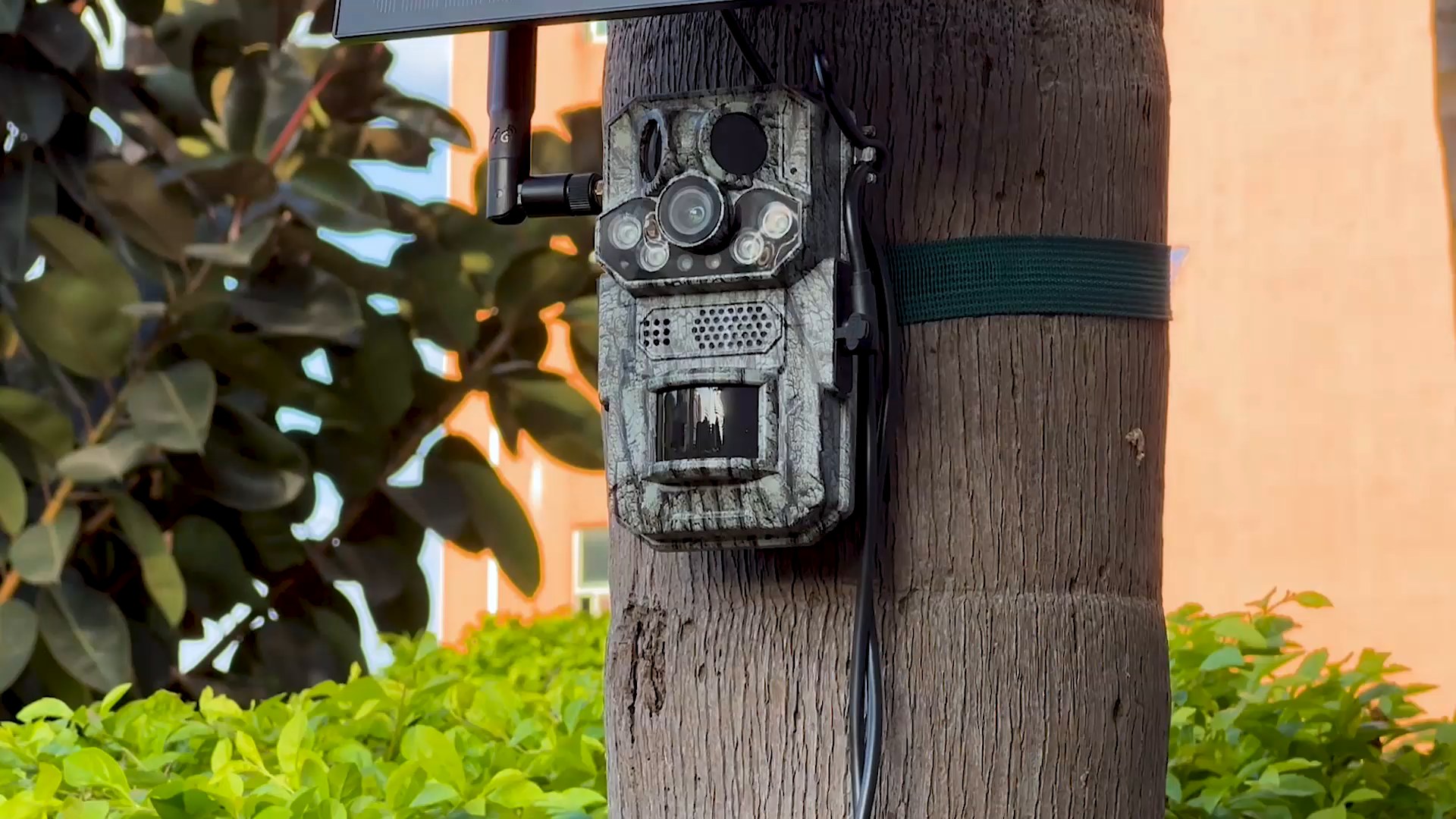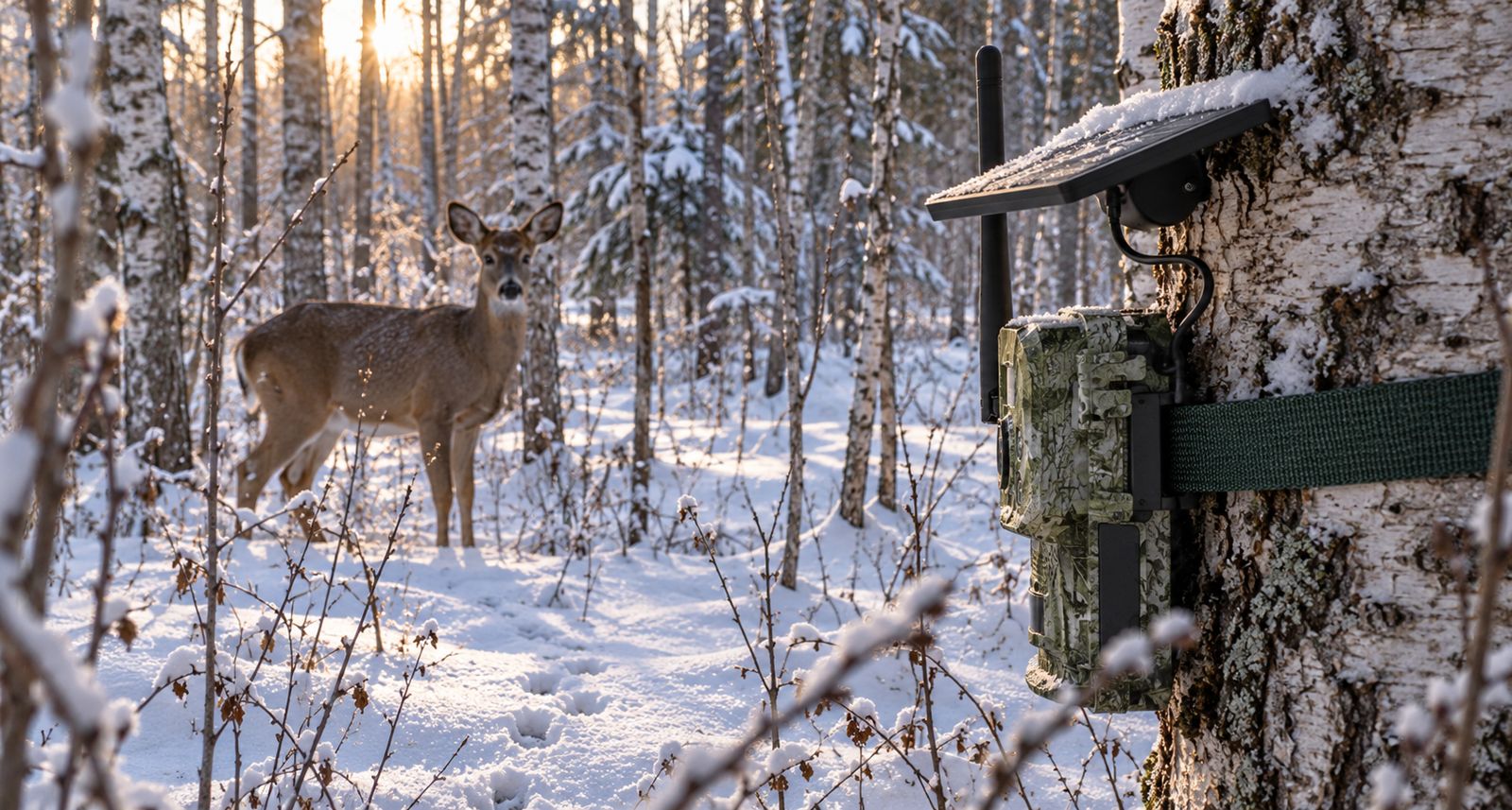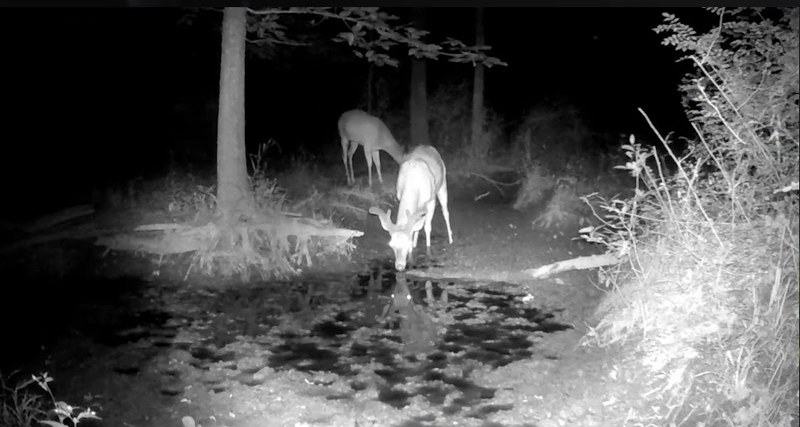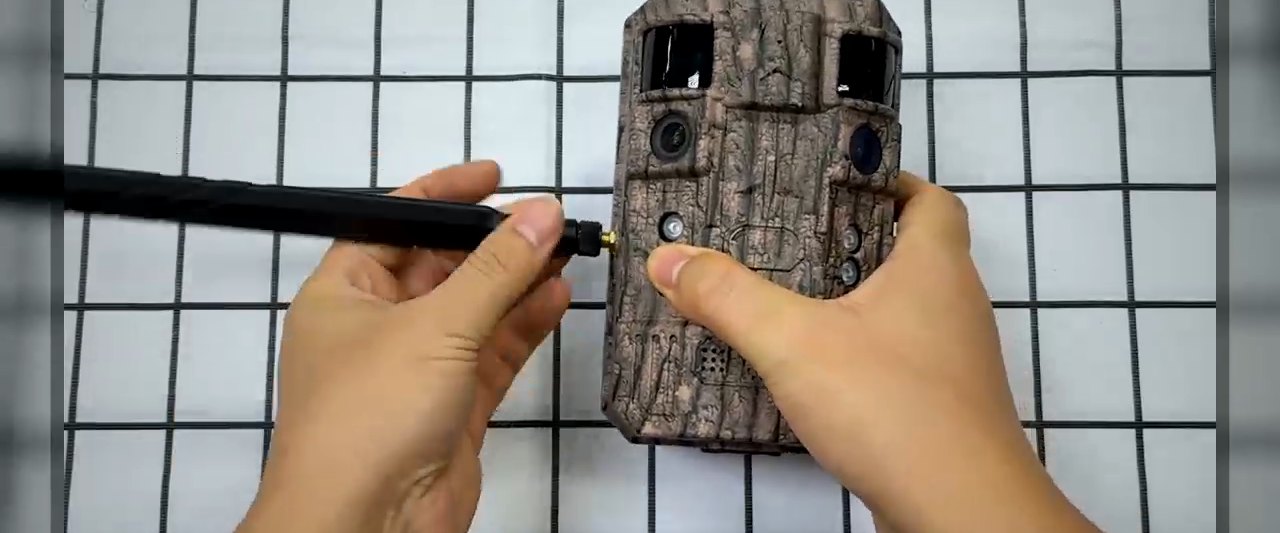
In short: Screw on the antenna, insert a nano SIM with an active data plan, insert a microSD card up to 128 GB, then scan the camera’s QR code in the Ucon app. Do it at home first. Once a test photo reaches your phone, mount the camera with the lens on the trail and the solar panel in the sun.
What you need before you start
Besides the camera, its antenna and its solar panel, a 4G trail camera needs three things to send its first photo.
| Item | What to check |
|---|---|
| Nano SIM card | The SIM in the box, activated, or any local nano SIM with active data. |
| MicroSD card | 128 GB or smaller. |
| Phone | iPhone or Android, with the Ucon app installed. |
| Coverage | Your carrier has LTE where the camera will hang. See our carrier guide. |
Set the camera up at home or in the store, where you have good signal and a table to work on. A problem is much easier to find in the kitchen than on a tree a mile from the truck.
Antenna and SIM
1. Screw on the antenna. Thread it onto its connector by hand until it is snug. Do not use pliers, which can damage the connector. Fit it before you switch the camera on, and keep it pointing up once the camera is mounted. The HC809 uses a 5 dB external antenna, which helps on land at the edge of coverage.
2. Insert the nano SIM. With the camera switched off, open the card bay and slide in the SIM card from the box after activating it, or a nano SIM from any local carrier with an active data plan.
Three checks save a second trip:
- Activate the SIM first. A new SIM that has not been activated with the carrier will not connect.
- Remove any SIM PIN. A PIN lock can keep the camera from connecting. Take it off in a phone before the SIM goes in.
- Mind the band. The US version does not support T-Mobile’s 600 MHz band (B71). On rural land where that is the only T-Mobile signal, use an AT&T or Verizon SIM.
Card and app
3. Insert the microSD card. Any card up to 128 GB. The card is the camera’s local storage for photos. A card that has been in another camera or a computer may hold old files, so a fresh or freshly formatted card avoids surprises.
Close the card bay firmly. The housing is rated IP66, and the seal only does its job when the cover is fully shut.
4. Connect the Ucon app. Install Ucon on your iPhone or Android phone. Switch the camera on, then scan the camera’s QR code in the app to add it.
Now test it. Walk in front of the camera, wait, and check that the photo arrives on your phone. Do not head for the woods until it does.
Cloud storage and AI species tagging are optional subscriptions you can add in the app later. The camera works without them.
Mounting on the tree
The camera and the solar panel have different jobs, so place each one for its own job.
- Camera: about waist height, aimed slightly down at the spot where game will stand or pass. Angle it along the trail rather than straight across, so the animal stays in frame longer.
- Panel: facing south, tilted toward the sun and clear of leaves. It only charges well in direct sun. Our solar guide covers placement in more detail.
- Foreground: clear branches and tall grass in front of the lens. Moving leaves cause empty triggers, and anything close to the lens reflects the night infrared back.
- Sun in the lens: avoid pointing the camera due east or west, where the rising or setting sun shines straight in.
Before you walk away, trigger one more photo and confirm it arrives. Signal at the tree is often weaker than at the truck.
If the first photo does not arrive
Work through these in order:
- SIM. Is the data plan active and the PIN removed? Put the SIM in a phone and check that mobile data works.
- Band. A T-Mobile SIM on land covered only by 600 MHz will not connect. Try AT&T or Verizon.
- Antenna. Snug on its connector and pointing up.
- Spot. Move the camera higher on the tree or toward the edge of the timber, where signal is often stronger.
Still stuck? Our support page covers common questions.
What a store or seller should stock
Setup is the moment a new owner decides whether they like the camera. A store that keeps one demo camera running at the counter, SIM in and app connected, can show a live photo arriving on a phone. That sells the camera better than a spec sheet.
- Tell buyers what the camera needs to run: a nano SIM with active data and a microSD card up to 128 GB. Keep cards on the shelf next to the cameras.
- Stock the US LTE version for US customers. The HC809 is the easy first camera; the HC828 suits buyers watching wide fields.
- Amazon sellers: put the four setup steps in a listing image. Buyers who can see the setup before they order are less likely to give up on it after.
Browse all trail cameras and the camo solar cameras for farms and yards. New to cellular? Start with cellular vs Wi-Fi trail cameras. To put your own brand on the camera, see OEM and private label, and for a quote from 50 units, contact us.